Mastering the Wireless World: Your Comprehensive Guide to Pairing Bluetooth Earbuds
Welcome to the Wireless Revolution!
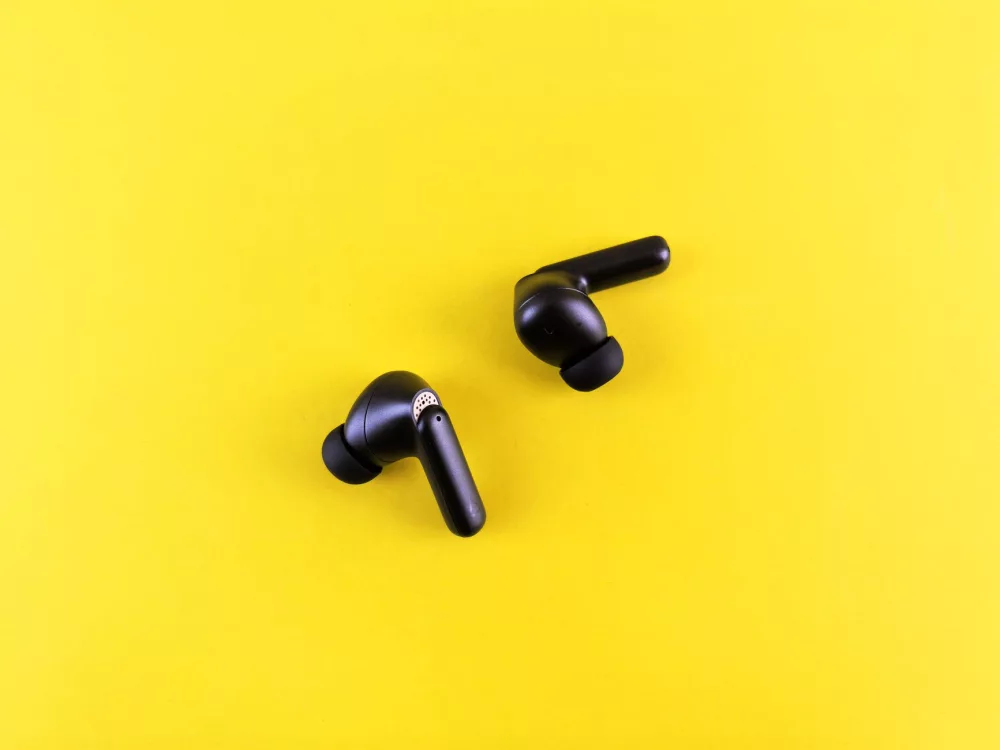
You've just unboxed your shiny new Bluetooth earbuds, or maybe you're trying to reconnect an old favorite. Either way, you're ready to ditch the tangled wires and embrace true audio freedom. I totally get it – that feeling of pure convenience is unmatched. But sometimes, getting those little devices to talk to your phone, tablet, or laptop can feel like a bit of a mystery, right? Don't sweat it. We're going to walk through everything you need to know, step-by-step, to get your earbuds happily connected. I’ve put together this guide to make sure you can enjoy your music, podcasts, or calls without any hassle.
Think of this as your personal roadmap to seamless sound. I've broken down the process into easy-to-follow sections, covering the basics, tackling specific device types, and even diving into those pesky troubleshooting moments. You’ll be a Bluetooth pairing pro in no time, I promise!
Before We Begin: Your Quick Checklist
Before you even think about hitting that pairing button, let's just make sure we've got a few things in order. Trust me, these little checks can save you a lot of head-scratching later on.
- Charge 'em Up! This might seem obvious, but it's often overlooked. Low battery levels can sometimes prevent earbuds from entering pairing mode or maintaining a stable connection. Make sure both your earbuds and their charging case have enough juice. I usually give mine a good half-hour charge before attempting a first-time setup.
- Know Your Earbuds: Read the Manual (Yes, really!) Each brand has its quirks. While the general steps are similar, the exact button press or indicator light sequence for pairing mode can vary. A quick glance at the user manual (or a speedy online search for your specific model) will tell you precisely how to activate pairing mode. It’s like knowing the secret handshake for your particular device.
- Keep it Close and Clear: Proximity Matters Bluetooth works best over short distances. Keep your earbuds and the device you're trying to pair them with relatively close to each other – say, within a few feet. Also, try to avoid major obstructions like thick walls or large metal objects that could interfere with the signal. I always try to pair my devices in the same room.
- One Pairing at a Time, Please If your earbuds were previously paired with another device (like an old phone or a friend's tablet), they might try to connect to that device automatically. It's often best to disable Bluetooth on any other nearby, previously paired devices or even 'forget' the earbuds from those devices to avoid confusion.
The Universal Pairing Process: A General Overview
Okay, with those quick checks out of the way, let's talk about the core process. While the exact steps might have tiny variations, this is the general sequence you'll follow for almost any Bluetooth earbud and source device combination.
1. Activate Bluetooth on Your Source Device
This is your phone, tablet, laptop, or whatever you want to connect your earbuds to. You'll need to go into its settings and toggle the Bluetooth feature to the 'On' position. This makes your device discoverable.
2. Put Your Earbuds into Pairing Mode
This is the crucial step for your earbuds. How you do this varies wildly. It might involve:
- Opening the charging case lid (many modern true wireless earbuds enter pairing mode automatically when the case is opened for the first time or after a reset).
- Pressing and holding a button on one or both earbuds for a few seconds.
- Pressing a dedicated button on the charging case.
You’ll typically see an indicator light on the earbuds or case start to blink rapidly (often blue or white), letting you know they're ready to be discovered. This is their way of saying, "Hey, I'm here! Come find me!"
3. Scan and Select Your Earbuds
Back on your source device, once Bluetooth is on, it should start scanning for nearby devices. You'll usually see a list of available devices appear. Look for the name of your earbuds – it's usually the brand name followed by the model number (e.g., "Sony WF-1000XM4" or "Jabra Elite 7 Pro"). Tap on your earbuds' name in the list.
4. Confirm the Connection
Once you select them, your device will attempt to connect. You might see a pop-up asking you to confirm the pairing. Accept it! After a moment, your device should show a "Connected" status next to your earbuds' name, and the indicator light on your earbuds will usually change from blinking to a slow pulse or simply turn solid, or even off. That's your cue that you're good to go!
Specific Pairing Scenarios: Let's Get Practical!
While the general steps hold true, I know it's helpful to see them in action for specific operating systems. Let's dig into some common ones.
Pairing with an iOS Device (iPhone, iPad)
- Go to Settings: Tap the 'Settings' app icon on your home screen.
- Tap Bluetooth: Make sure the toggle is green (ON).
- Activate Earbud Pairing Mode: Put your earbuds into pairing mode as per their instructions (often by opening the case or holding a button).
- Select Your Earbuds: Under 'Other Devices,' you should see your earbuds' name appear. Tap it.
- Confirm: Your iPhone/iPad will connect, and the name will move under 'My Devices' with a 'Connected' status. You're set!
Pairing with an Android Device
- Access Settings: Swipe down from the top of your screen to open the Quick Settings panel, then long-press the Bluetooth icon, or navigate through 'Settings' > 'Connected devices' > 'Bluetooth'.
- Enable Bluetooth: Ensure Bluetooth is toggled ON.
- Activate Earbud Pairing Mode: Get your earbuds into pairing mode.
- Scan for Devices: Your Android device will usually start scanning automatically. If not, tap 'Pair new device' or 'Scan'.
- Select and Connect: Choose your earbuds from the list of available devices. You might see a quick pairing request pop-up; confirm it.
Pairing with a Windows PC
- Open Settings: Click the Start menu, then the gear icon for 'Settings', or type 'Settings' into the search bar.
- Go to Bluetooth & devices: Select 'Bluetooth & devices' from the left-hand menu.
- Turn On Bluetooth: Ensure the Bluetooth toggle is ON.
- Add a Device: Click 'Add device', then select 'Bluetooth'.
- Earbud Pairing Mode: Put your earbuds into pairing mode.
- Select and Pair: Your PC will search. Click on your earbuds' name when it appears. Windows will usually confirm the connection.
Pairing with a macOS Device (MacBook, iMac)
- Open System Settings: Click the Apple menu in the top-left corner, then 'System Settings'.
- Go to Bluetooth: Select 'Bluetooth' from the sidebar.
- Turn On Bluetooth: Ensure Bluetooth is enabled.
- Activate Earbud Pairing Mode: Get your earbuds ready to pair.
- Select and Connect: Your Mac will list available devices. Click 'Connect' next to your earbuds' name.
Troubleshooting Common Pairing Headaches
Sometimes, things just don't go as smoothly as we'd like. Don't worry; I've been there! Here are some common issues and my go-to solutions.
- Earbuds Not Showing Up?
- Are they charged? (Go back to the checklist!)
- Are they in pairing mode? Double-check the manual for the correct sequence. A rapidly flashing light is usually the key.
- Is Bluetooth on your source device enabled? A silly oversight, but it happens to the best of us.
- Try a power cycle: Turn Bluetooth off and back on on your source device. For earbuds, place them back in their case, close it, wait 10 seconds, then open and try again.
- They Show Up, But Won't Connect?
- Forget the device: On your source device, go into the Bluetooth settings, find your earbuds in the list (even if it says 'Not Connected'), and select 'Forget This Device' or 'Unpair'. Then, restart the pairing process from scratch. This often clears up stale connection data.
- Restart everything: Sometimes a good old-fashioned reboot of your phone/laptop and a full power cycle of your earbuds (case closed, then opened) is all it takes.
- Move closer: Reduce the distance between your earbuds and the device.
- Only One Earbud is Working?
- This is super common with true wireless earbuds. Often, they haven't properly synced with each other.
- Reset them: Many earbuds have a factory reset procedure, usually involving holding a button on both earbuds simultaneously, or a specific sequence with the charging case button. Check your manual; this is usually the quickest fix.
- Place back in case: Put both earbuds back into their charging case, close the lid, wait for 10-15 seconds, then open it again. This often forces them to re-establish their connection to each other.
- Interference Issues?
- Other wireless devices (Wi-Fi routers, microwaves, other Bluetooth devices) can sometimes cause interference. Try pairing in a different location to see if that helps.
Advanced Tips for a Better Earbud Experience
Once you've mastered the basic pairing, here are a couple of things that might enhance your wireless journey even further.
- Multi-Device Pairing (Multipoint): Some premium earbuds support connecting to two devices simultaneously. This means you can be listening to music on your laptop and seamlessly switch to take a call on your phone without manually reconnecting. If your earbuds support it, the manual will explain how to enable this feature. It's a game-changer for multitasking!
- Keep Firmware Updated: Just like your phone or computer, your earbuds often receive firmware updates. These can improve connectivity, sound quality, and battery life. Check your earbud manufacturer's app (if they have one) regularly for updates. I always try to keep mine updated for the best performance.
- Clean Those Contacts: If you're experiencing intermittent connection issues or charging problems, sometimes it's simply due to dirty charging contacts on the earbuds or in the case. A quick wipe with a dry cotton swab can sometimes resolve these little annoyances.
You're Now a Bluetooth Earbud Pro!
See? It wasn't so bad, was it? With a little patience and these steps, you've successfully navigated the sometimes-tricky world of Bluetooth pairing. Now that you've got your earbuds connected, go ahead and enjoy your favorite tunes, podcasts, or calls with the ultimate freedom of wireless audio. It's a great feeling to just grab and go, isn't it? Enjoy your wireless sound experience!
About Editorial Team
Senior columnist and culture critic specializing in architectural designs, emerging high-growth systems, and contemporary philosophies.